So the other day I received a ticket, customer has a Windows VM which has multiple drives attached to it (file server) and it was not booting into windows. Basically it would take a long time while booting and at the end it would take you to windows repair options which was of no use.
Customer had enabled the protection on VM and had 15 days backup (AHV backup) available.
He already tried to do the restore from a couple of available snapshots and the same issue was persisted.
I asked him to try to restore from the oldest snapshot, and the VM booted successfully.
I started the troubleshooting steps on a snapshot of the VM (not the original VM) by booting from Windows Media and VirtIO media, just wanted to confirm if all disk drives are visible and if bootloader is correct.
For the SCSI driver, I followed Nutanix article 5338.
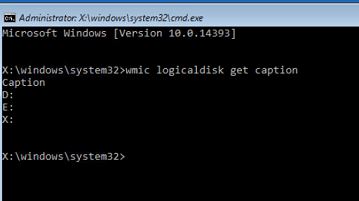
Once you boot from correct Windows media, select repair and then choose command prompt, first type “wmic logicaldisk get caption” to find out how many drives are mounted:
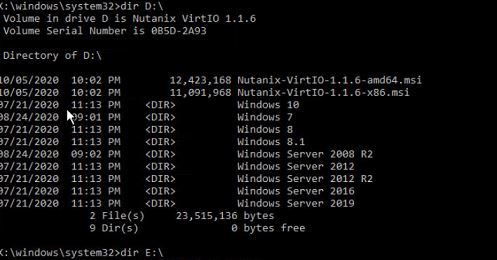
type dir driveletter:\ and find the drive which has VirtIO mounted, for me, it is D
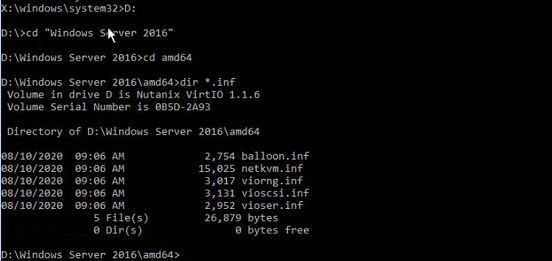
now change to that drive and go to your OS folder, go to amd64 and use “dir *.inf” to confirm the vioscsi.inf (SCSI driver)is available
now to load the driver type “drvload vioscsi.inf“, it should give you below message

now that SCSI driver is loaded,run “wmic logicaldisk get caption“again
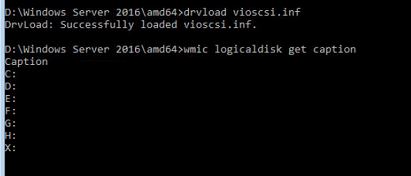
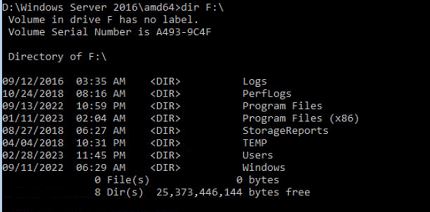
you will see that all disk drives are mounted, use “dir driveletter:\ to find the drive which is hosting your Windows OS, for me the drive letter is F:\
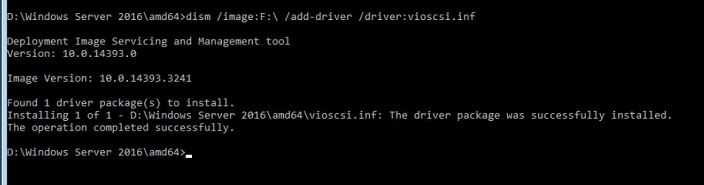
now from the same place as we loaded the SCSI driver (we need to be on same location as driver exist) we will run “dism /image:OSDriveLetter:\ /add-driver /driver:vioscsi.inf” for me it will be “dism /image:F:\ /add-driver /driver:vioscsi.inf“
now we will exit the command prompt (do not just restart!)by typing exit and then choose “Continue, Exit and continue to window” (do not shut down the VM or restart it manually!!!)
Tip:I did the restore for multiple VMs (same VM different snapshot)and I did the above process, two, three and even 4 times, but at the then end it booted successfully into windows.
Once you are booted inside the VM, first thing you do is to open the virtIO drive to install the msi which holds the scsi driver.
Ahmad,
 tech journey