Veeam Agent for Unix servers can be installed in two modes:
-Standalone mode
-managed mode (this post).
Standalone mode:
when Veeam agent for Oracle Solaris operates as a standalone product, all protection and disaster recovery tasks will be done with the user of oralcle solaris, you will be able to see the jobs status and restore points information in VBR.
you will need to install the agent directly on oracle Unix server.
I have an Oracle Solaris Spark version 10 in my environment.
our requiremnet is to create two Jobs, Daily and weekly to protect this Server data.our server is hostingg oracle DB which we need to take backup of DB files (file level ) via Veeam.
Firstly, we will copy the Veeam agent for Oracle Solaris to our Oracle Server.you can download the latest agent version from Veeam support portal (here) and copy the correct pkg file to the Oracle Server.
use below command to install the package on the Oracle serverpkgadd -G -d ./VeeamAgent-4.0.0.1029-sparc.pkg
if you already have the veeamagent installed,(manage mode for example) you can use the below command to reset the configuration for the agent:(default configuration)veeamconfig mode reset --force
now we need to provide our agent access to VBR server, so it can detect server and repository(es)available on the VBR server:veeamconfig vbrserver add --name <VBRSrvName> --address <VBrIP> --port 10006 --login <user@domain.com>

You need to make sure that the provided user has permission on VBR server and repository (read and write access).
Now that we have pointed our veeam agent with a VBR server, let’s list available repositories on the VBR server:

Now that we know our repository, let’s create the first job, we need a daily backup job, which takes backup of two Directory, and we need to keep the restore points for 7 days.It is recommended to enable indexing on jobs (indexall).(please note that in UNIX to represent space, we use \)veeamconfig job create --name <backupJobName> --reponame [veeam]\ Local\ Backup\ Repository --includedirs /arch/PRD12,/u00/PRD12 --maxpoints 7 --indexall

now we need to create a schedule and link it to this job:
we like to create a job which runs on every day (except Thursday) at 20:00
<jobname> is the name of the job which we have created earlier:veeamconfig schedule set --jobname <Jobname> --weekdays Monday,Tuesday,Wednesday,Friday,Saturday,Sunday --at 20:00

once the Schedule been created, we will enable the Schedule for the job :veeamconfig schedule enable --jobname data11iDaily
We can confirm that the job has the correct Schedule:Veeamconfig schedule show --jobname <jobname>
or by simply looking at crontab
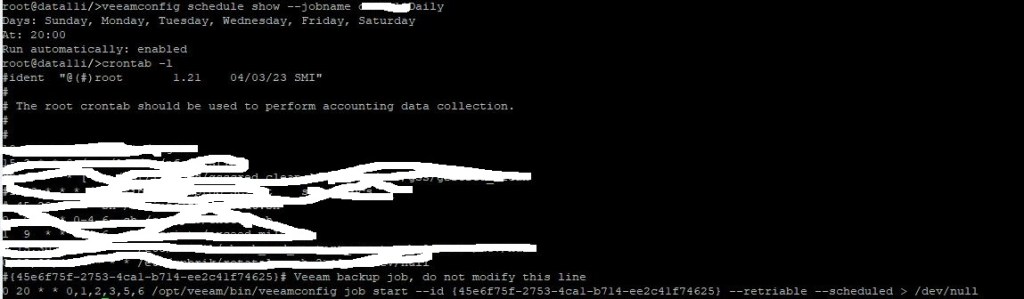
That is it! Our first job is finished.
We can do the same steps to create the second job, but there is a slight difference between first job and second job.We need to enable pre- and post-script in the second job and since we are running this job once a week (Thursday), we need to create full backup on this particular day.
first, we will create the backup job:(prejob and postjob represent the pre and post script location):veeamconfig job create --name srvWeekly --reponame [veeam]\ Local\ Backup\ Repository --includedirs /arch,/u00,/u01/PRD12,/u02/PRD12,/u04/PRD12 --maxpoints 4 --prejob /scripts/pre.sh --postjob /scripts/post.sh --indexall
now we will set the Schedule for this job:veeamconfig schedule set --jobname srvWeekly --weekdays Thu --at 21:00
and since we wanted this job to take a full backup :veeamconfig schedule activefull set --jobname srvWeekly --weekdays Thu
finally, we will enable the backup jobveeamconfig schedule enable --jobname srvWeekly
you can confirm the schedule in crontab.
 tech journey