If you have an application, which uses Database at backend, at one point of time you will get a request to move the DB to another server or change it from standalone to cluster or vice verse.
Enterprise Vault is not an exception and when it comes to SQL and you need to follow a set of steps which I will show you in this article, I will illustrate how to migrate EV SQL to another server.
Scenario:
we have below in our environment:
-A working EV environment consist of two servers (14.2), one hosting mailbox archiving and one is hosting Journaling server.
– Always-on SQL server 2016
-Always-on SQL server 2019
Requirement:
We need to migrate EV’s databases from the 2016 SQL cluster to 2019 SQL cluster.
Activity:
First we need to prepare the destination SQL cluster ready for hosting the EV’s databases.
So on each node in the always-on SQL in the destination , do the below activities,
Note: Use the following query(SQL management) to grant select permissions to the Vault Service Account over the MSDB tables. Replace DOMAIN\VSA with the Vault Service Account:
USE MSDB
GRANT SELECT ON dbo.sysjobs TO “DOMAIN\VSA”
GRANT SELECT ON dbo.sysjobschedules TO “DOMAIN\VSA”
GRANT SELECT ON dbo.sysjobservers TO “DOMAIN\VSA”
GRANT SELECT ON dbo.sysjobsteps TO “DOMAIN\VSA”
– Assign the database role SQLAgentUserRole to the Vault Service account.
– Confirm TCP/IP and/or Named Pipes are enabled.
a. Open SQL Server Configuration Manager
b. Expand SQL Server Network Configuration and click Protocols for <instance name>.
c. Confirm Named Pipes and/or TCP/IP are enabled under the Status.
– run he below query (SQL management)against Master database:
USE Master
GRANT VIEW SERVER STATE TO “domain\vsa_account”
GRANT ALTER ANY LOGIN TO “domain\vsa_account”
GRANT VIEW ANY DEFINITION TO “domain\vsa_account”
we will also need the name of the new SQL server (listener), from the SQL management console>drill down to find the availblity group listernetname.
right click on it >properties to find more detials such as port (if it is a custom port)
we will use this details in the EV server after migration of DBs to new SQL server
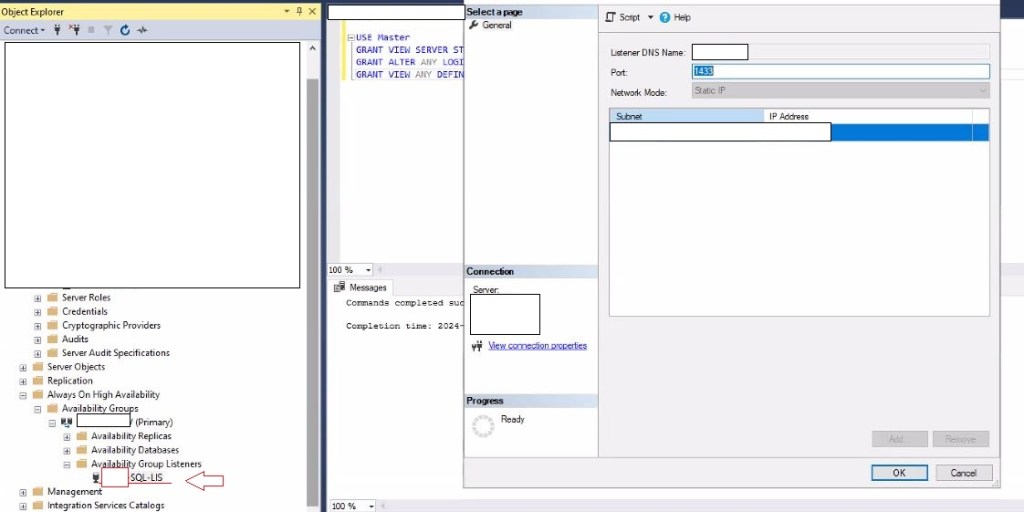
once you do above activity, you can use the deployment scanner , just to confirm that new SQL is ready to host EV’s databases.
this will also ensure the connectivity between EV and new SQL server(s) as well.
before we stop the EV services and start our activity, we will take note of SQL name where it is hosting related Databases.To do that we will have two options:
1- from VAC(veritas Admin console)
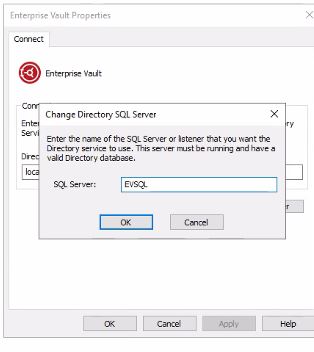
open the console, right clock on Enterprise vault, on left side at the very top> properties>change directory SQL server,you will find the name of current SQL server hosting EV (directory Database)
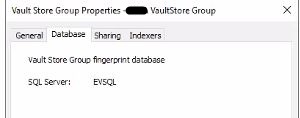
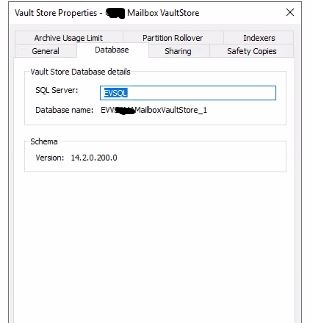
we will do the same to find out the SQL hosting vault Store group and vault store databases as well, just right click on each >properties>Database
2) the second way to find sql and database details is via EV management CMD , which was introduced in EV12,.just use Get-EVDatabaseDetail
and it will provide you all databases and the details for the hosting SQL as well, including the compatiblity level of Database, on new server, we need to change the compatbilty of our database to match the new location.
if you are not sure, just right click on master DB in new SQL (or any other databse) > properties > options
All right, now that we got all our details,let’s start the activity.
stop the EV services.I prefer to keep the EV tasks in reporting mode and once I am sure there is no pending items in the message queue I shutdown the EV services.
Once EV services are stopped.We will start the migration of the databases.you can copy the databases as you like, as there are multiple ways to migrate databases.I will use the basic method which is the ususal , backup /restore procedure.
to backup, right click on each database > tasks>backup and then select full backup.
copy the folder to each node, to the same drive,(SQL always-on, you should have save drive letters on all nodes).
create a folder for EV log, and one folder for EV Databases, it is recommended to keep them on different drives.
go to the primary node in the new cluster, and restore each database (using backup file) to the new cluster.
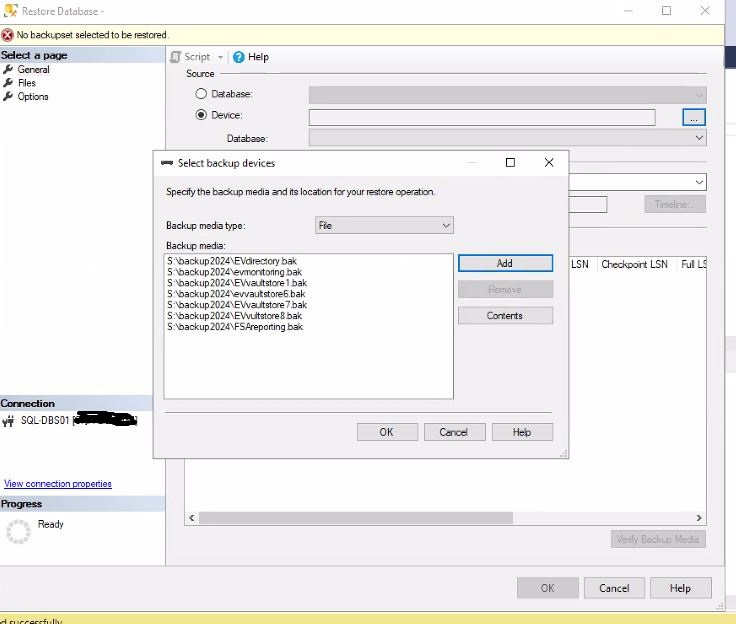
Just right click on Database container select “restore a database” in the new window > Device> select your backup file.(one at a time)
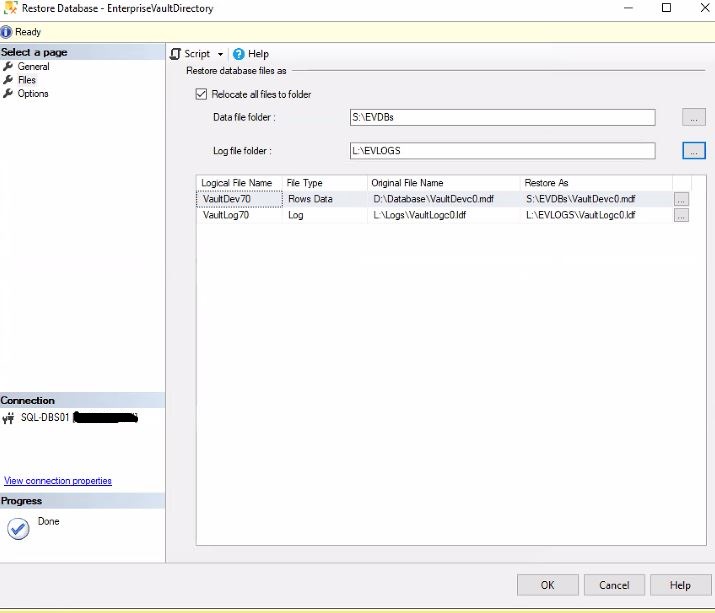
on the left side, select file>select the checkbox for “Relocate all files to folder” > select the data folder and log folder location which we have created earlier and press OK to finish the restore (it must give you successful message at the end of restoration)
As I said earlier, We need to change the compatibility level of restored Databases to match new location, right click on each newly restored DB > properties>Options, make sure the compatibility level is matching the master DB in new cluster.
Once we have restored all DBs , if we do not have a SQL always-on cluster,we can ignore the next task
If we have a SQL always-on cluster, we need to add newly added DBs to the availability group.
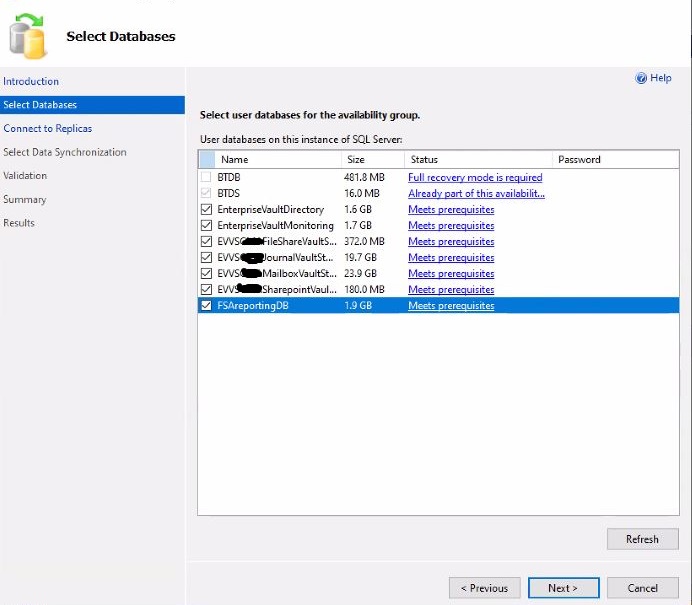
In the left menu, under “Always On high Availability drill down to reach “Availability Databases”, right click on it >Add database to Availability group> select all newly added databases > next
on next screen, we make sure we are connected to other nodes in the cluster and click next
on the next screen, I have selected Automatic Seeding and clicked next
on Validate screen, you should receive success for all tests.(remember to keep the backup folder in the other nodes (same location as primary node, and create folders for EV DB and EV LOG just like Primary node)

On summary screen, verify everything and click finish.
once it is done.you should see that all EV DB’s are appended with “synchronized”and they will show under the Availability Databases as well.
our job on SQL side is done, now we need to introduce the new SQL to Enterprise Vault.
Access the EV server (you need to do this change on all nodes)>go to register>go to HKEY_LOCAL_MACHINE\Software\Wow6432Node\KVS\Enterprise Vault\Directory\DirectoryService
double click on the SQL server name> put the name of the new SQL server(SQL Listener name we gathered from earlier step)
once you have done the above change,as I have mentioned EV has introduced ommands for moving databases from version 12.which we will use.
from the EV server,open the EV management shell,and use below command:Get-EVDatabaseDetail | where {$_.SQLInstanceName -eq 'oldSQLname' } | Set-EVDatabaseDetail -ServerName 'newSQLName'
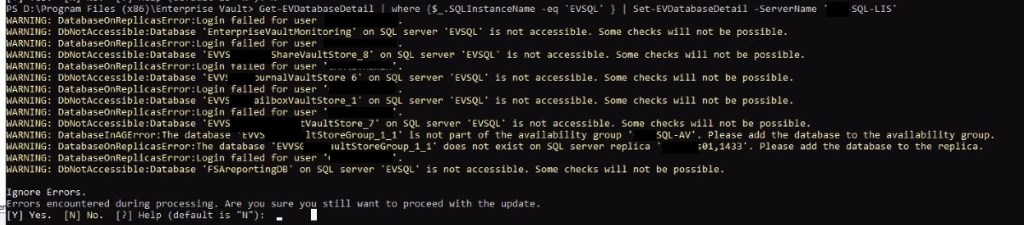
Press yes, for confirmation, you can ignore warnings here.
now run the Get-EVDatabaseDetail one more time:

Thats it.you do not need to run the command on other nodes (just change the sql name key in registery)
now we can start our EV services on all nodes.you can start all archive tasks and do the usual check-up to confirm EV archive/restore is functioning properly.
It is recommended to immediately take a full backup of newSQL server(EV Databases) once the migration is done.
Cheers,
 tech journey