one of our customers migrated their SAP ASE (Sybase) from cloud to on premise and contacted us to integrate it with Netbackup.
host machine is a Linux VM (RHEL).I have requested them to keep the DBA available during the activity as well.
I have tried to go through Veritas SAP admin guide but to be honest I started banging my head to the wall after going through it a couple of times.
I hope this article comes handy to however is facing difficulties to integrate Netbackup with Sybase.
the integration of Netbackup and Sybase has three parts,
1- install the agent on the host
2- modify the backup script
3- create the backup policy in Netbackup
Installation
1-
Install the netbackup client on the Sybase host.you need to confirm that the version is compatible with the OS and sybase version through Netbackup compatibility list.You need to make sure the port 1556 is open between , Master/media and client.You also need to confirm that you are able to reach Master/Media from client by IP and name.
2-
we need to configure the netbackup with sybase, to do that ,
In windows clients,copy ,<installatioFolder>\NetBackup\DbExt\sybase\libsybackup.dll t%SYBASE%\ASE-16_*\lib\
In linux clients,run below script
/usr/openv/netbackup/bin/sybase_config
and you will be asked to type the path to the sybase instance(if you have multiple instances, you need to answer y and type it)
after this, we will run the mklogdir (it is under <installationfolder>\netbackup\logs),it will create all netbackup log (legacy and new ones) folders under the same location.
we will look at logs (especially pbhdb folder) later on.
one the above actions are down, We will go to Netbackup administration console (or web UI),and we will create a new policy.
keep the policy type as sybase.modify the storage and other attributes as you like, on the Schedule tab, you will see that one schedule(Default-Application-Backup) of type of application backup,is already added to the policy,which without it,
We will not be able to back up database, if this type of schedule is not included in the policy.
We will add two more schedules ,one for full database (named FULL) and one for Transaction log(named TL)
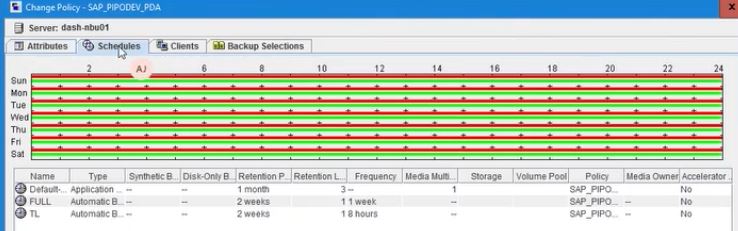
in the clients tab, we will add our client server and in the backup selections we will add our backup scripts(templates).
When Netbackup Agent gets installed, it copies scripts and templates for different Databases (like Oracle,DB2,Sybase …etc.) as well.
We can find them under :<installLocation>/netbackup/ext/db_ext (linux/unix)<installationfolder>\netbakcup\dbext (windows)
if we open drill down to sybase and then scripts folder, We will see the three scripts(templates), which are for backup, load and restore of a sybase database.
In order to backup a database , we need to edit the backup template and then add the template to a backup job in Netbackup.When the Netbackup job runs, it will run the template(script) and then as per the schedule it will either do a full, incremental or a log backup.
Remember that one template will be able to backup one database and if you have multiple instances or if you like to back up databases such as master, you need to create a separate backup script for each one of them.now lets go through content of backup script:
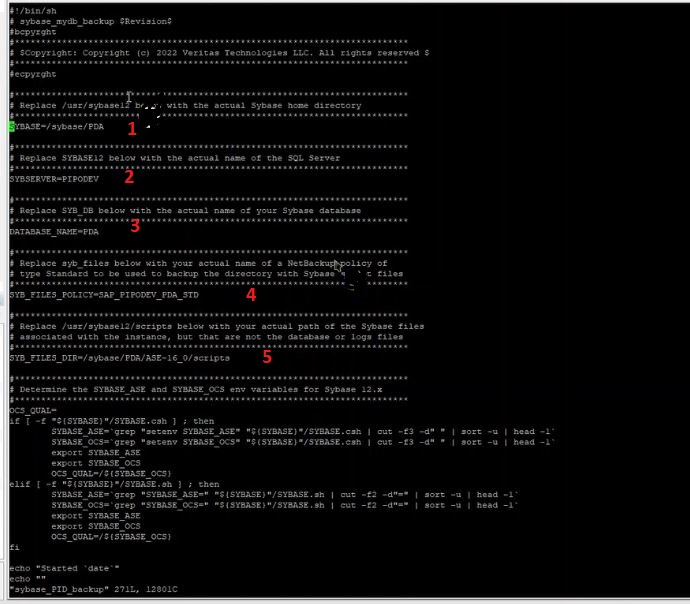
1- we need to write the sybase instance: home directory, for linux client, you can get via printenv | grep –i Sybase
2- the host name of sybase server , for linux server you can get via printenv | grep –i hostname
3- name of the database which we want to backup
4- name of the netbackup database which we want to backup sybase files with it.
5- location of files where the policy in step 4 will back them up.
two points I have to add here,
point 1-I have had a DBA with me during installation and they provided me the requested values.
point 2- the step 4 and 5 is only required, if you want to take backup of database plus configuration files, scripts and other files.such files needs to be baced up via standard policy (for linux based clients) or windows based policy (for windows based policy).so in my case since I am interested in database, I will comment out (#) line 4 and line 5.
now les us see the other part of the backup script
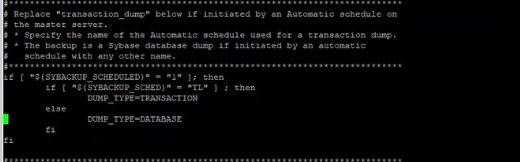
a simple if statement shows that,script either will be a database or transaction,
as you can see I have kept the “$(SYBACKUP_SCHED)” = “TL” which is the name of my transaction log in the schedule tab of our netbackup policy (the one we created before).

The above command is to create dump of the database.
if we like to have multiple stream for the backup , based on size of the DB, we can use below part of the code, just remove the # from start of the line. each line (just use copy and paste), will present one stream.In our scenario, since this is a small database, I will ignore this part.

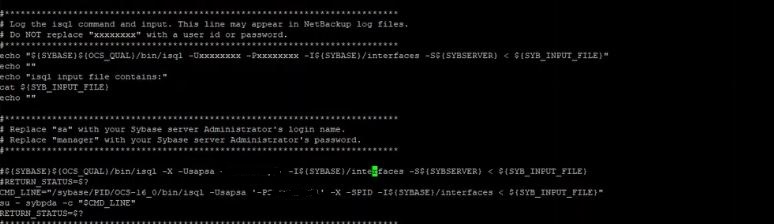
We need to replace the “sa” with out sybase sa username or (any other user who has the same privileges) and the manager one with the password of the user (it will be in clear text)
you need to modify only the part of the code which is asking you to change it.
point 1: you need to keep the password in the ‘ ‘,(for example ‘-Ppassword’)
point2: you need to add CMD_LINE to the line.this is because , we are informing the net backup to switch to this user before running the script.
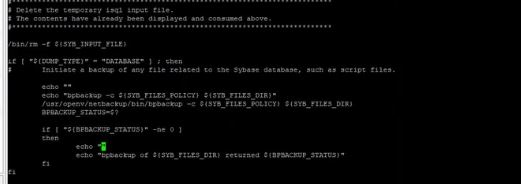
In the start of the script,I have mentioned that we will not comment out step 4 and 5 for this scenario, so the above script (from first if to fi) needs to be commented out.(or removed.
so that’s it , we are done with our backup script.
Depending on how many databases we have, we will create backup scripts accordingly. Once we are finished, we will access our Sybase script again and in the Backup Selections, we will add all newly created backup scripts.
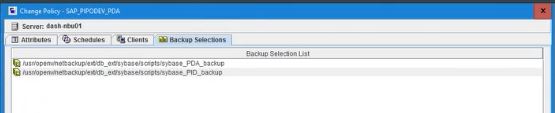
before we test the policy I need to mention a point here,
the location where we have saved our backup scripts is the default location,the problem is that when you do a netbackup agent upgrade, these scripts could be over-written, so always keep a second copy of your backup/load/restore scripts.
if you like to change the script location (from the default location), refer to below link:
https://www.veritas.com/support/en_US/article.100039639
now,let us test our script, run the policy manually.from Netbackup Administration console.to find out the details of the job or troubleshoot any issue, we will access the client and open the <netbackup installation>/netbackup/logs/pbhdb fodder.
here you will see the output of the script:
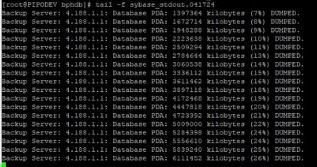

As I mentioned earlier the dump will be sent to netbackup storage (the one we specified in the policy) and does not get saved on the client.
when the job gets completed, we will see two separate jobs, one is the default application backup and the other one will be either Full or TL.

if we open the Default application backup job activity, we will be able to see the name of the backup file as well.
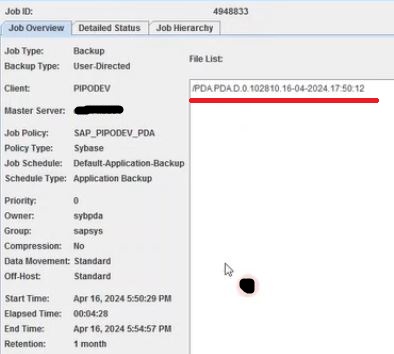
in case we like to find out the list of backup files available in our netbackup server, ,we can do that from Catalog on master server or via bplist from Client side or master side.from Client we can find out via :

I hope this article will be useful for you guys.
 tech journey