Enterprise vault (EV) is an application which does archive your data workload.so it is crucial to take backup of those archived data.
There are a few components which needs to be backed up regularly as per as the desired RPO and RTO of a firm:
– EV SQL:hold DBs related to EV(Directory, Vault Store, Vault partition, Monitoring, etc)
– EV Computer Node:holds EV configuration and components which are saved locally
-EV Index:holds information about each archive data and basically maps the shortcuts to its archived data on vault.
-EV Vault store(s): this is the location where archived data gets saved.
TO have a smooth recovery, it is strongly recommended it to have a backup of all above component at exact same time.this will ensure that during recover all components will be restored to that particular part of time and reduces the chances of losing data or inconsistency of your restored data.
Backup EV SQL:
You can use any available backup solution to back up your EV SQL server. You need to ensure that you are taking backup of your SQL and transaction logs.
One more consideration about EV SQL is doing regular maintenance plan for your DBs.a maintenance plan will make sure your DBs are well organized, which has direct impact on the performance of your environment.
Veritas does provide a great step-by-step documentation to do maintenance plan which you can find out more about it in below links:
https://www.veritas.com/support/en_US/article.100012617
https://www.veritas.com/support/en_US/article.100022023
Backup of EV computer,Vault,Index:
Nowadays, everyone does use virtualization and I have never seen an environment which have installed the EV on a physical server, so I will cover the EV on top of a VM.
You can take snapshot of the EV VM, but before that, you need to keep the EV in a state which is called”Backup mode”.
This will inform the EV that a backup is in the progress and basically no more archive takes place during that period of time.
This will involve putting the EV vault partitions and EV index(s) volumes in the backup mode and once the backup is finish, the EV needs to be brought out from backup mode.
This procedure can be done by creating a script which you can call by your backup solution or by using a task scheduler.
EV provides you a PowerShell within the setup folder (<installation folder>\Enterprise Vault\Reports\Templates\Transform-Backup.ps1

By running the powershell script, you will be provided an HTML output which does show all commands you need to create your script for putting (SET) the EV in backup mode and taking (CLEAR) the EV out of backup mode.
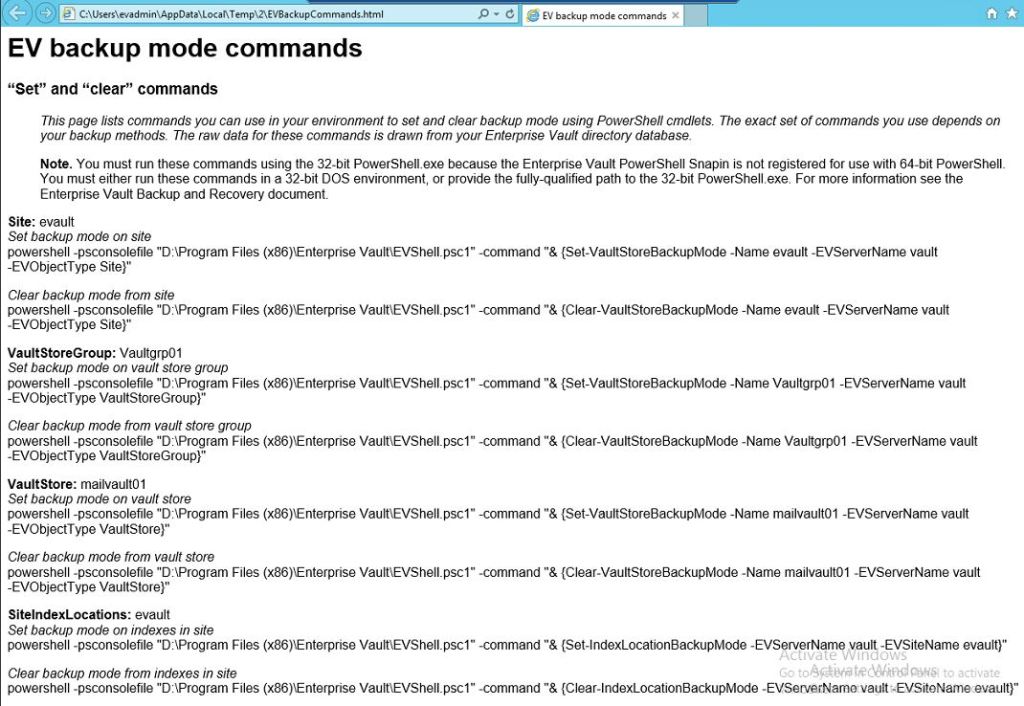
If you notice in the above output, we do see only one command for index and multiple locations for vault.
You can put set/clear your vault to/from backup mode at Site/VaultStoreGroup/VaultStore level which depending on your need and requirement you can use.
I do prefer to use Site level as this does not require me to worry about adding set and clear for new Vault store group or Vault store .
To prepare the needed scrips, I will create two Scripts, one to set the EV in backup mode (EVSetBackup.bat)

and one to clear the backup mode (EVClearBackup.bat)

I hope you have noticed that at the beginning of each line I have put the absolute path to PowerShell application (32 bit) to be called to be called and run the command.
Now before I continue, let us take a look at the properties of one of the vault store partition and access the backup tab specifically.
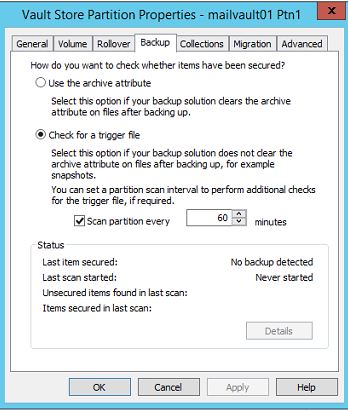
We do see two options here:
use the archive attribute:In case you have physical server for EV or if you plan to take backup of vault store by backup solution, you should select this option.
Check for a trigger file:In case you have EV as VM (our case), we need to select this option. We can have two type of trigger files , XML file which is updated by the backup solution and text file which needs to be created manually.
in this blog I will cover the text file type of trigger file.
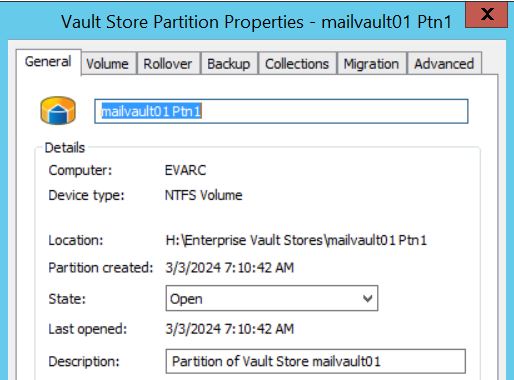
Find your vault partition’s root folder (right click on it >general tab >location),we will add a line to our script for creating and deleting the trigger file on that location.
We will have our scripts as below:
for post-script. we will create the text file.what will happen here is that it will be used by EV until the next time the script is being called

one pre-scirpt , we will use DEL command to delete the trigger file, but here the name is “IgnoreArchiveBitTrigger.old”that is because the EV storage will automatically change the “IgnoreArchiveBitTrigger.txt” to IgnoreArchiveBitTrigger.old”

Once you have confirmed everything, you can run the batch file to confirm it is working locally,now you can add the backup script to your backup solution or run it via your task scheduler.
That is it all about EV backup !
 tech journey