Veeam Migration is a straight forward process, but as Veeam 12 does support PostgreSQL, I wanted to do the migration at the same time migrate from MS SQL to PostgreSQL and I thought to write a post about it as well.
Preparation:
– Make sure no backup, copy, replication job is running.
-disable all jobs (don’t forget to take snap if you have a huge list of jobs)
-copy the host file of Veeam server (in case you have entered any client/server names there) to the new server.
-from Firewall make sure same ports/rules which are open on old Veeam server are applied to new veeam server
-same version of Veeam is installed at the new server.
– repository(es) are accessible from new server
Migration:
so first thing, let’s create a configuration Backup, from Veeam>Configuration Backup Settings,
take note of location where it is getting saved (you can find the absolute path in the repository section).
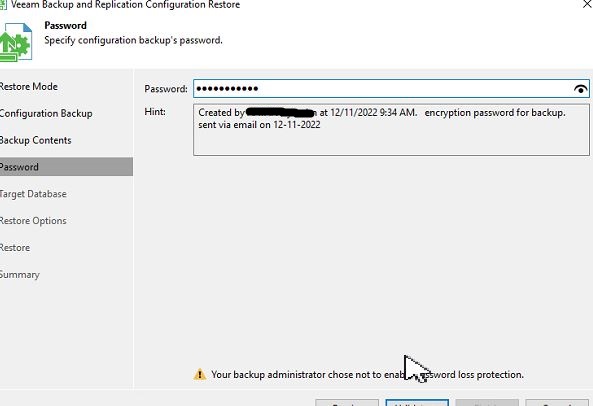
If you have enabled the “Enable backup file encryption” make sure to have the password ready(otherwise reset it) as you
will need it during the restoration.
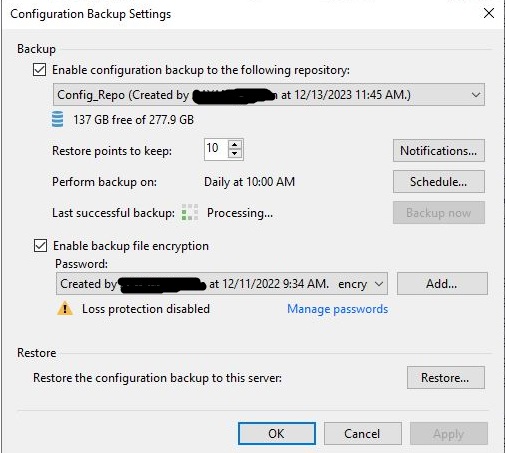
Once the configuration file is created, we are almost done from source side, we should disable source server’s veeam services
I use PowerShell usually for such tasks:Get-Service | where {($_.Name -like "Veeam*")-and ($_.Status -eq "Running")} | Stop-service -Force | Set-Service -StartupType Disabled
On a new server start the Veeam services,(if they are not already running), open the console and go to configuration backup settings and click on Restore:
– Restore: this is in case you have somehow lost your VBR server, and you like to restore the server back via configuration file
– Migrate: this is our case, as we like to migrate to a new server. Let’s select Migrate and click on Next
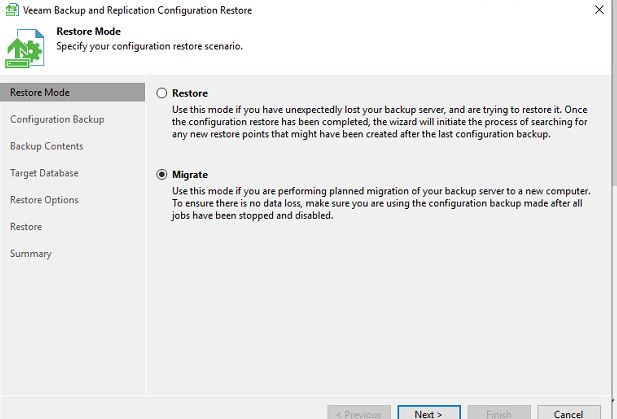
We will be asked to point to the location of configuration backup file (which hopefully you have it ready and available on the new VBR server, click Next

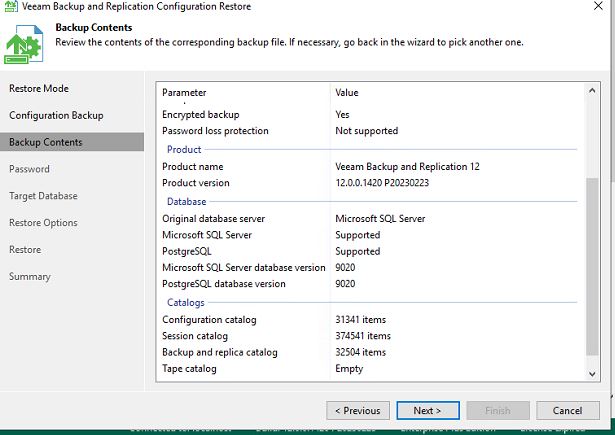
we will see a review of convent of backup file provided in last option, click next
We will be requested to enter the password for configuration backup, enter it and click Next
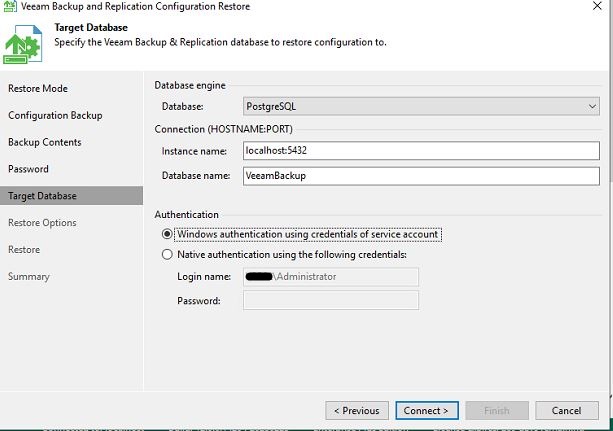
We will be asked for Database Engine where we like to restore the configuration on it.Veeam v12 and above introduced PostgreSQL
which is free, and it does not have the size limitation (10 GB in SQL express) and it is available with Veeam setup file.
As I would like to do migration from SQL to PostgreSQL, I select the Database as “PostgreSQL” and Database name and authentication I have kept as default (you can change it, if you desire), click Next
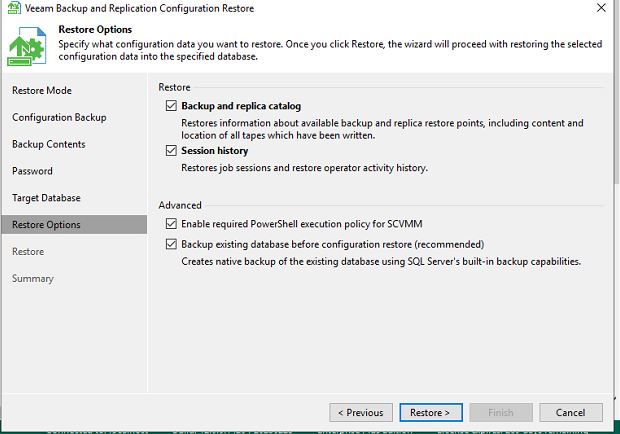
We will be asked about Restore option and what we want to restore, I have kept the default which is everything.click restore
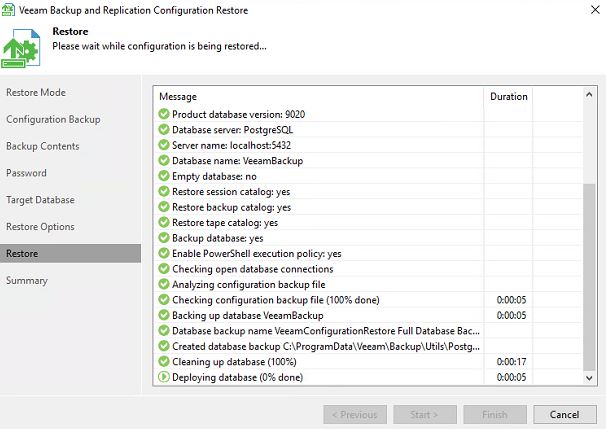
veeam backup services will be automatically stopped for the process to start, and then the restore tasks will be shown in
the next window
I received below notification mentioning that I have taken configuration backup before all jobs finishes (which I am sure I did not)
and asking me to do a full configuration restore to include all restore points, I selected Yes

you should receive the green check mark on all tasks and the “configuration restore completed Successfully”
Amazing right!we just finished the migration of Veeam from one server to another server and at the same time
we migrated our DB from SQL to PostgreSQL
click next to go to next screen

you will be provided with restored credentials in case you like to verify/update them, click Next

restored cloud credentials will be presented in case you like to update it. Click next

summary page of the migration, it tells you that all jobs will be in disabled state until Veeam server finishes the synchronization of restored configuration data with the actual state of backups and replicas on disk.

Post migration:
once the synchronization is done, I did below steps:
-rescan connection for cloud connect
– if any UNIX , Linux agent are connected to Veeam server, you need to make sure they are connecting to new Veeam server, for me as the new server has a new name and IP Address, I had to reset the agent on each Unix client and register them again with new Veeam server.
-make sure all hypervisors connections are fine and there is no error
-enable the jobs in the dashboard, try to do a test on bunch of jobs just to confirm backup jobs are working fine.
I really enjoyed how smoothly DB transition took place from SQL to PostgreSQL within the migration of Veeam server.
I believe many applications will try to integrate PostgreSQL in their installation in the future as it removes the burden of License and the size limitation which other competitor do provide in their free versions.
Ahmad,
 tech journey
Appreciate this write up! The only thing I would add, if you have Windows Agent jobs, you’ll need to edit each job and choose the new backup server name, if it changed.
LikeLike