In my last post I have demonstrated how to install EV (on windows cluster).
one of first tasks you will need to do after installing EV is to add targets to it .
In this article I will demonstrate how to add an exchange server to EV server.
Assumption:
1- You have a working EV server.
2- You have an Exchange server(s) and you do have admin access on your server.
3- ports required for communication between EV And Exchange server are open.
4-EV service account has a mailbox associated with it.
5- you have a system mailbox per exchange server.
Prepare the Exchange server:
before we can add the exchange server as a target to EV, we need to prepare the Exchange server.
In your EV server, go to Enterprise vault setup folder and the power-shell screen, you will find two power-shell, which needs to be done on your Exchange server (exchange management shell).

open the Exchange management shell and run the setEVExchnagePermissions(you can use -h to get the command syntax)
this command will provide EV service account with permissions required on exchange and each mailbox.

do the same for second powershell,SetEVThrottlingPolicy.this will override the usual exchange throttling policy
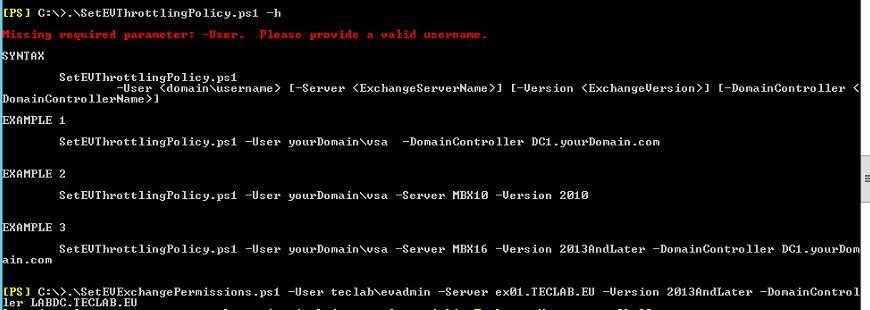
Note: if a window popped up during running above scripts and asking you to enter username and password, you need to enter exchange admin user and password and not the EV user and password!.
one last thing you need to do ,is to go to each system mailbox and add EV service account in send as tab.

Add Exchange to EV server:
Open the Enterprise console and expand the menu on the left side until you reach the domain,right click on Exchange server > New > Exchange Server

Provide the Exchange server name and select “Exchange Mailbox Task”.Your EV server is selected by default and if you have multiple EV server, you can select the EV which you want to create the task on it.
Note that Exchange Provisioning task will be selected by default when you select Exchange mailbox task

on system mailbox window, select the designated system mailbox for this Exchange server

select next and finish,now you have successfully created an Exchange server and Mailbox archiving task for it.
Provisioning Group
now we need to create a provisioning group for our our domain.Via provisioning group we can isolate users and apply different policies.
right click on Provisioning Group > new Provisioning Group

select the type of provisioning Group and click Next
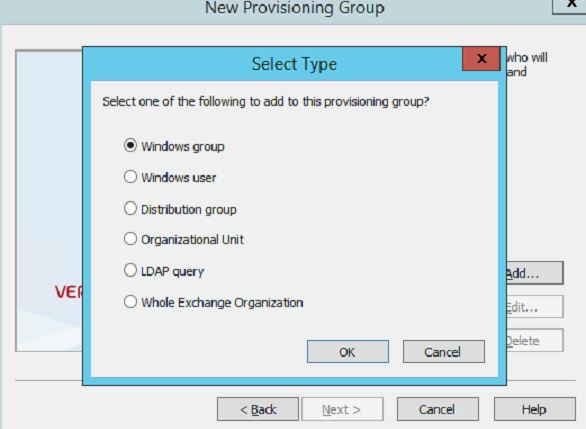
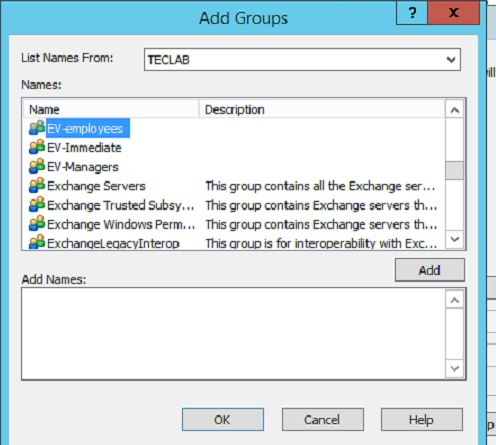
Select the group and click next(I have already created three groups in my AD which I will use in different provisioning groups)
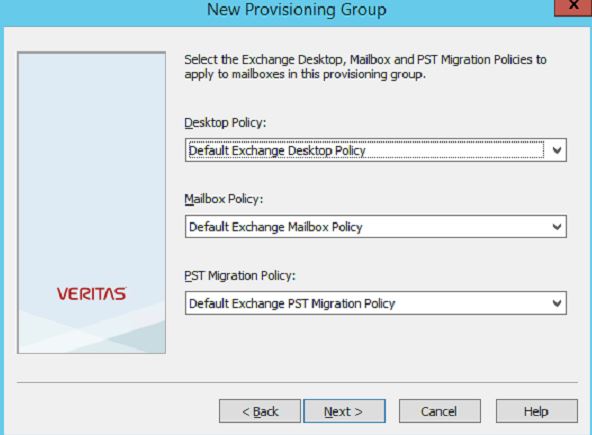
You will see below policies on next window
– Desktop policy:options which can be enabled for end/user
– Mailbox Policy:rules for archiving
-PST migration Policy:rules for PST migration
select your preferred policy or select default and select Next
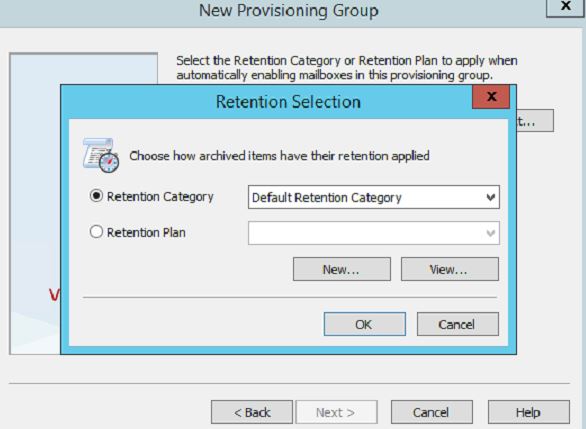
Select your preferred /Default retention plan
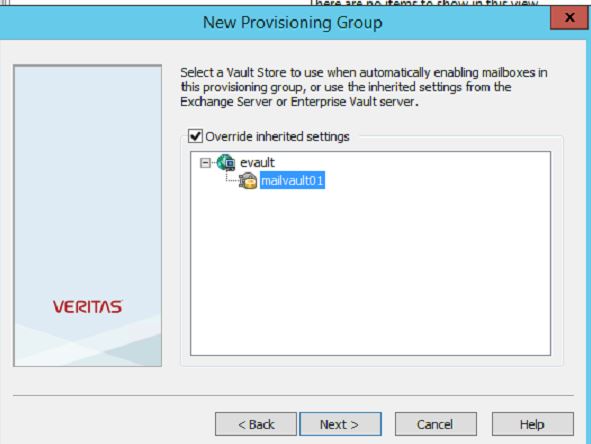
select the vault store which will be used when you enable a mailbox.click next
You can select “automatically enable mailboxes”which will enable all users in the provisioning group automatically.
I have not selected this option as I have intention to do it manually.

That’s it! we have added the exchange to Enterprise vault.
Ahmad
 tech journey