My colleague received an interesting issue the other day and asked if I have any clue on how to fix this issue.
At first glance, customer has a partition with 16 TB (obviously GPT) which has another 6 TB free space (unallocated)which he wanted to use to expand the current partition.
Now when we tried to expand the partition using windows disk management, we received the below error:
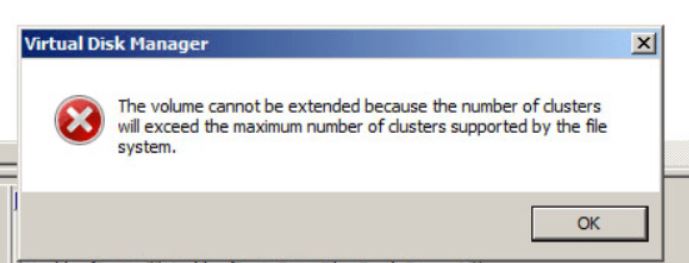
“The volume cannot be extended because the number of clusters will exceed the maximum number of clusters supported by the file system”
This is a physical backup server, and the partition was presented to the server via ISCSI.
After doing a bit of research, I figured out the issue was because of the “Allocation Unit Size”
Allocation Unit Size
file allocation unit is also known as “cluster size ” as well, which is a unit of disk space allocation for files and directories, and it is the smallest unit to save and manage files on disk in windows.
When we format a partition or create a new partition (if we assume windows as our OS), as we can see in below image, beside selecting the file system & volume label, there is
Allocation unit size, which commonly we do not change it and keep it as Default.

To find out the maximum vloume size supported for each Allocation unit size, you can refer to the below table:
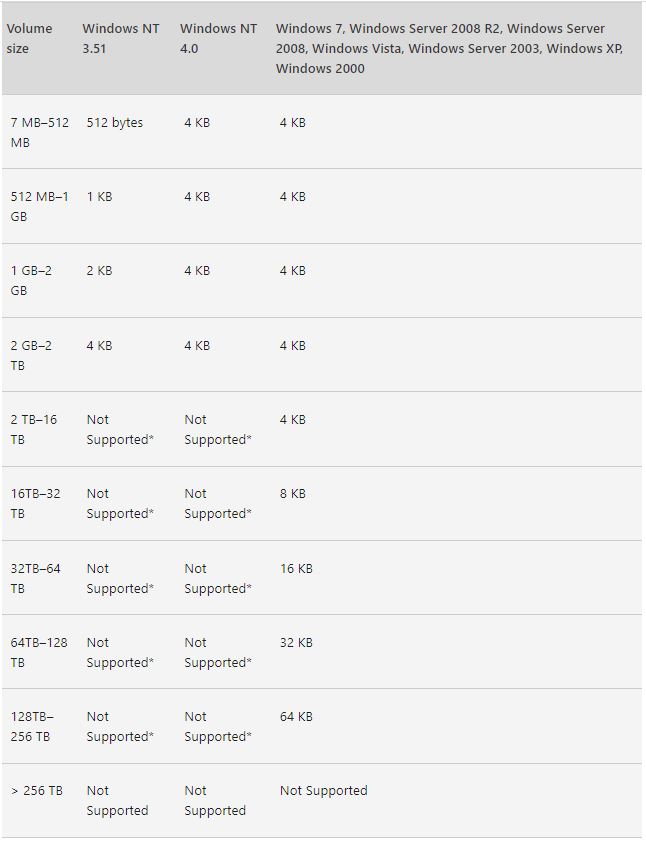
To manually calculate the maximum supported size , we need two parameters:
first is the maximum number of clusters in a NTFS volume which is static, (2^32)-1=4,294,967,295
the second parameter is the bytes per cluster (file allocation size) which can be figured out by accessing the OS and open a Command Prompt as an administrator, and run below command:fsutil fsinfo ntfsinfo x: (x is the drive letter of the partition)
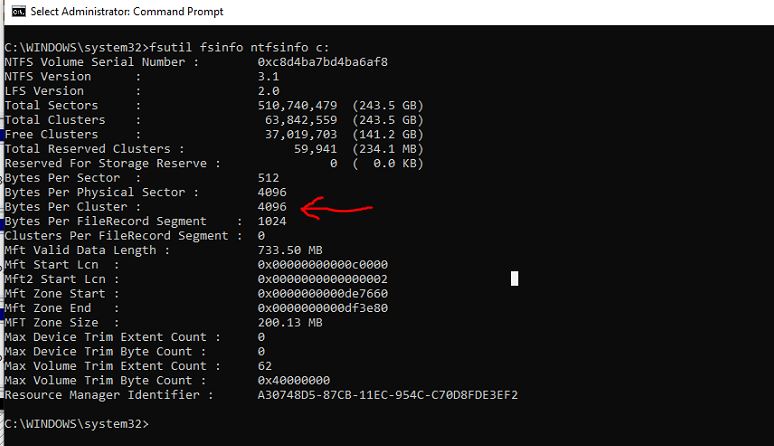
Now that we have the two pieces of information,we will multiple the maximum number of cluster by cluster size:4,294,967,295 * 4096=17,592,186,040,320 bytes
To convert this number to to TB, divide the number by 1,099,511,627,776 (1024 * 1024 * 1024 * 1024) which will give us 15.9999999962747097015380859375 TB
Which Allocation Unit size:
As explained above, your hard disk is organized by Windows file system based on allocation unit size(cluster size).
This means one allocation unit can only store one file, but one file can take up several allocation units.
So if you are going to save lots of small files it is better to choose a smaller allocation size,4K, to reduce the disk space waste and if you are going to save many huge files like backup files, it is better to choose a larger allocation size,64K, as it will improve reading and writing (fewer blocks to seek)and it will also increase the maximum partition size for your cluster.
How to change file allocation size for an existing partition:
The only official way to change the file allocation size for a partition is to format it and then change the file allocation size.
Ahmad,
 tech journey