Push an agent to Linux Server
In the next couple of posts, I will explain how you can install Veeam agents on Unix and Linux servers in your environment.
In my LAB environment, I have below servers:
-Veeam backup & replication (VBR) 11
– A fresh Debian VM (with minimum software installed on it)
There are multiple ways which you can install the Veeam agent on your Linux and Unix servers. In this post, I will explain how you can push a Veeam agent to a Linux server and in the next post, I will explain how you can install the agent on the server manually. I usually use these two-way to install Veeam agent on Linux / Unix servers.
Agent installation:
As you can see in the below image, my Linux details are visible

We will access our VBR console and go to Inventory, and then Physical Inventory and then create a new protection group :

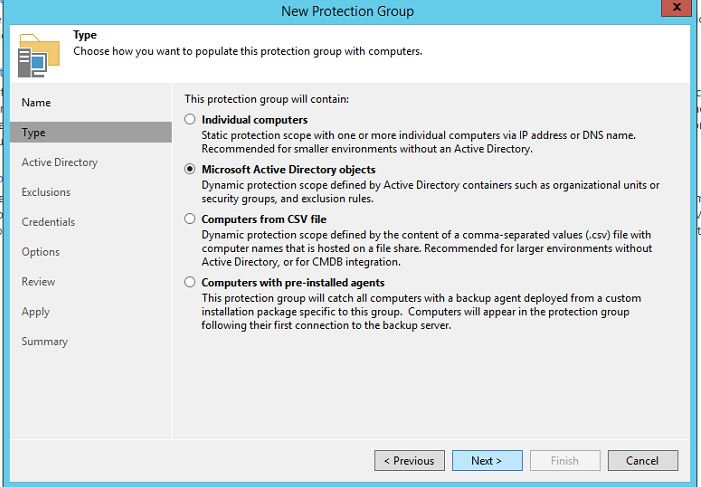
Provide a name to the group and click on next, on Type page, select Individual computers:
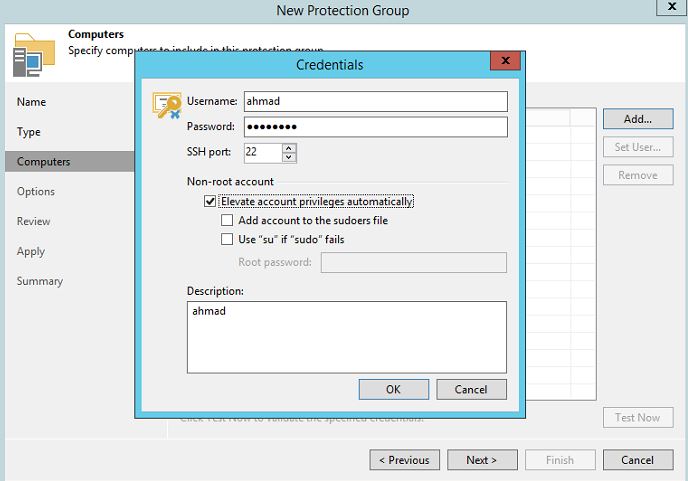
Add your client IP address and click on add Credentials, select Linux account

type your username and password and select the checkbox for “Elevate account privileges automatically”. click oK and click next.
Please note that the username provided here must be capable of installing agent in your Linux server. You cloud use the button “test now” to confirm permission.
In the next page, you can choose the timing for Veeam discovery, the deployment server (if you have multiple VBR), adjust the options as you wish, these settings can be modified later on as well.
click Next

You will see similar messages to the below image as Veeam tries to install and configure required components. Once completed, click next and finish

your Agent discovery session will pop up (or you can simply double-click on it).
As you see, my agent installation failed, due to dependencies issues (it is a fresh VM )
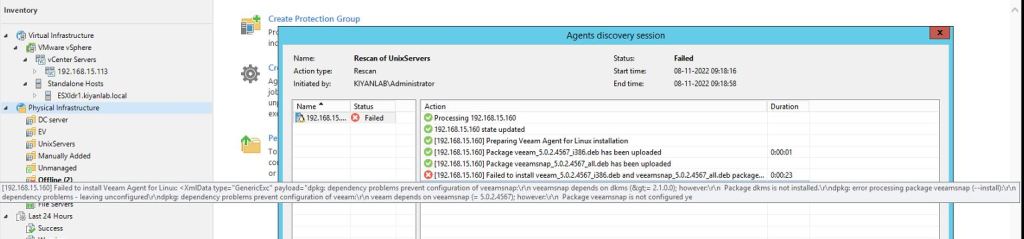
to sort out the above issue, I will connect the client DVD to the client and run the command:”sudo apt-get install -f”
the above command is used for Debian, it basically tries to fix the package dependencies of the installed system using whatever means necessarily.
Obviously, if you did not face this issue, you can skip this step.

Once all needed dependencies are installed, from VBR console, we will again access our client and right click on it and select, Install backup agent
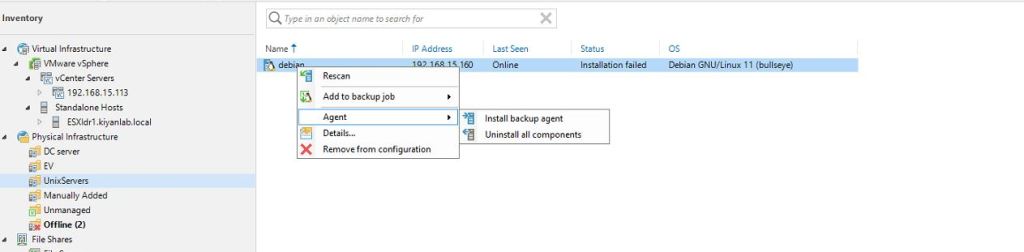

once the agent is installed successfully, right-click on the agent and add to a backup job and select a new job. Alternatively, you can do this from home in VBR as well

You need to select if this is a workstation or server (which provides you application consistency) and the mode to manage the backup job.

Provide a name for the Job and click next
Confirm the client computer account is added in the computers and click next
in Backup Mode, select the desired option.

In Objects (if you have selected file level backup), enter your path to desired folder location in your client (for example, /tmp/) click next
in the Storage, select the backup repository and retention policy, click next

in the Guest processing, if you do not have any script , you can add your pre-job / post-job script otherwise, click next
In schedule, provide the desire settings and click next and then finish.
Once the job configuration is done, Right-click on the job which we just created and click start to confirm the backup job functionality.

With the above procedure, you should be able to push an agent to your Linux server with no difficulties.
If for any reason you are not able to push the agent from VBR to your Linux server, you can install the agent manually in the Linux server. I will explain this procedure in my next post
Ahmad
 tech journey