In this post, I will explain how to overcome 0x800f0954 error which you cloud face while installing an optional feature in Windows.
Basically, I was assigned to install the RSAT on my computers, which has Windows 11 on it.
RSAT can be easily installed in Windows 10 /11 by accessing Settings > Apps >Optional Features and if you search for rsat, you will find the “RSAT:Acive Directory Domain Services and lightweight Directory Services tools” which you just need to need click install and get it installed on your system.
By following the above procedure, I have faced below error

I thought to install the feature via PowerShell as an alternative way to install the RSAT, but the same error showed on PowerShell:

A few clicks on Internet and I found out that you cloud face this error, if your PC is joined to a domain, (WSUS), if you there is a policy enforced to your PC and etc.
to sort out this issue, we need to enable a local policy on the PC.
You need to have admin permission on local PC to do this step:
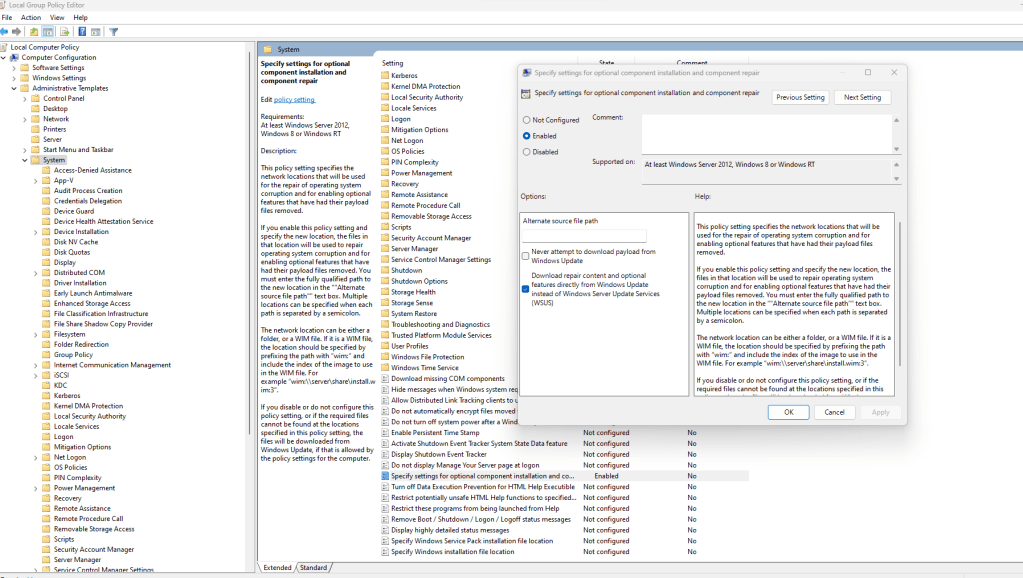
go to run and type:gpedit.msc and press enter, then follow below path:
Computer Configuration > Administrative Template > System, on right pane select “Specify settings for Optional component installation and component repair”, select Enabled make sure the check box for “download repair content and optional features directly from Windows Update instead of Windows Server Update Services (WSUS) is selected”, press OK and close the local group policy editor.
open a PowerShell and update the group policy and try to add the option which you tried earlier via PowerShell (or through GUI), and it should get installed without any error.

Ahmad,
 tech journey